
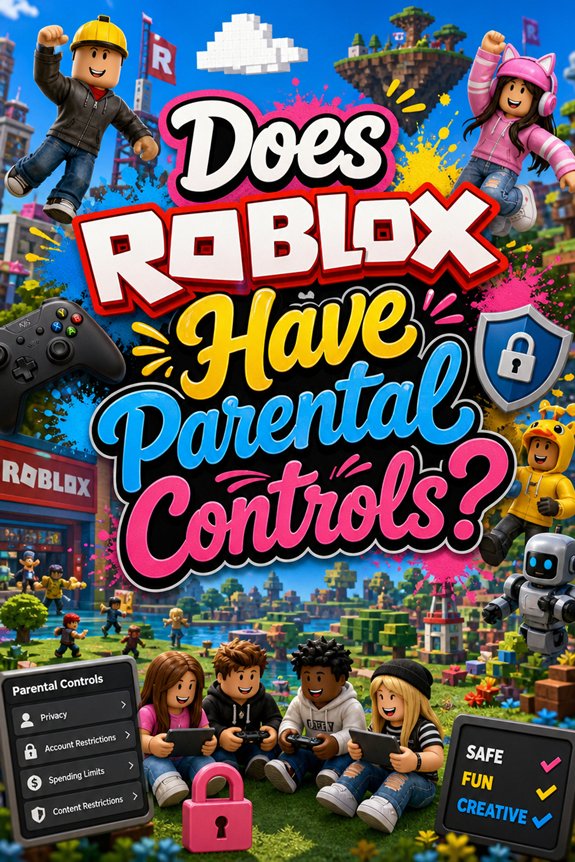
So, you’re wondering if Roblox has parental controls, huh? Spoiler alert: it totally does! Think of it as your trusty lightsaber in the galaxy of online gaming. You can customize settings to keep your kiddo safe while they’re off slaying virtual dragons or building epic kingdoms. But how do you even set it up? Hang tight—I’ve got some tips that’ll make you feel like a Jedi Master in no time!
How to Access Parental Controls in Roblox?
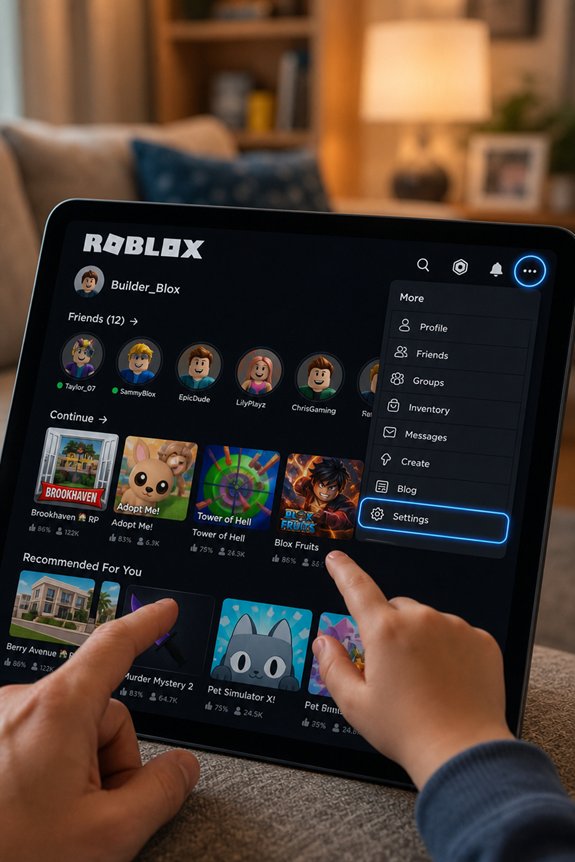
So, you’re wondering how to plunge into the magical world of Roblox parental controls, huh?
First off, grab your device and log into your account. Look for the gear icon—your new best friend! Click it and navigate to the “Settings.”
Under “Privacy,” you’ll find options for gameplay limits and account security. You can set who can chat, what games your kid can play, and more. It’s like building a fortress around their gaming experience!
And hey, remember: with great power comes great responsibility. So, customize those settings like you’re crafting a legendary character in your favorite RPG!
Setting Up Parental Controls and Account Restrictions for Kids
Let’s jump in! First, set up account restrictions. You’ll want to enable those parental controls like a Jedi activating a lightsaber.
Choose the settings that match your family’s gameplay etiquette. You’re not just a parent; you’re a digital citizenship superhero!
And don’t forget to monitor their friends list—because you wouldn’t let just anyone into your Batcave, right?
Celebrate those victories when they follow the rules!
Managing Chat Settings to Protect Your Child
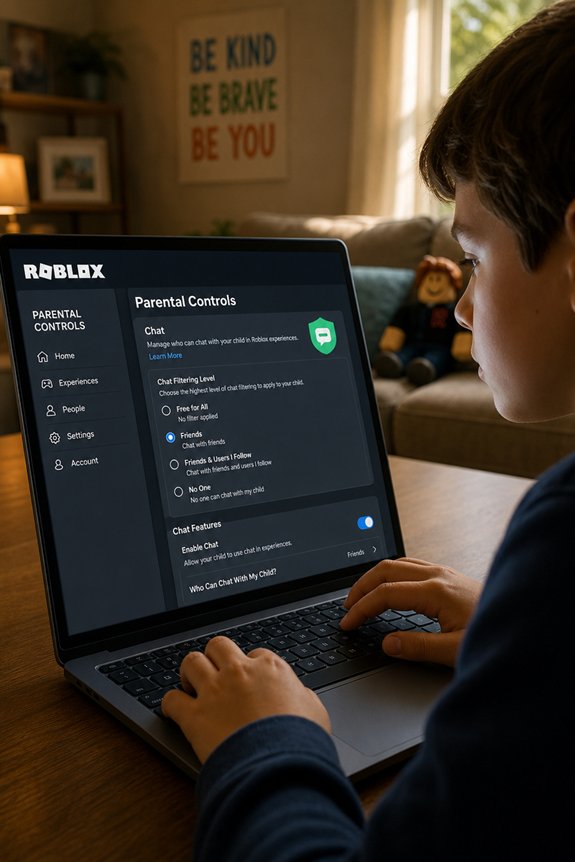
While you might think your kid’s online chats are as harmless as a friendly Pikachu, they can sometimes morph into a wild encounter with Team Rocket!
So, how do you keep those chats safe? Enter chat moderation and safety features!
You can customize who your child chats with and even limit messages to friends only. It’s like putting them in a bubble shield—super cool and protective!
And don’t forget to check in regularly. You’re the Yoda in this scenario, guiding them through the galaxy of online interactions.
With the right settings, you can keep the dark side at bay. Game on!
Customize Privacy Settings to Ensure Child Safety
How can you keep your kiddo safe in the vast universe of Roblox?
You’ve got the power! Immerse yourself in those custom game settings. Control who your little gamer interacts with.
Set their privacy to “Friends Only” or “No One” if you’re feeling extra cautious.
And hey, it’s like building a force field around them—just without the lightsabers.
Monitor player interactions! You wouldn’t let them roam a comic con without a buddy, right?
Track Gameplay and Activity for Peace of Mind
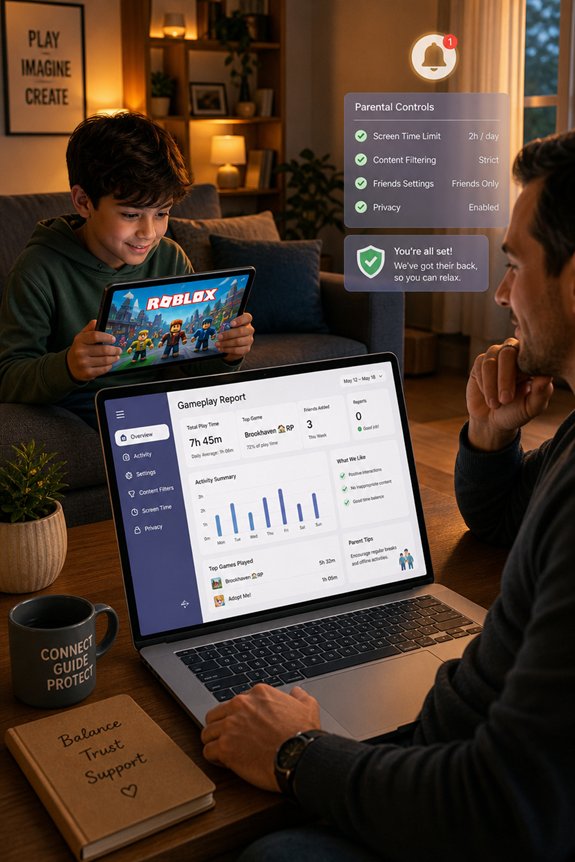
Ever wonder what your little gamer’s up to in the wildly creative world of Roblox? Trust me, you’re not alone!
With gameplay monitoring and activity tracking, you can keep tabs on their adventures without falling into the dark side.
Picture this: you, sipping coffee, while your kid battles virtual dragons.
You can check their game history and see what they’ve been up to. It’s like being a Jedi Master, but without the lightsaber!
Using Age Filters to Ensure Safe Content for Kids
You want your kid to explore Roblox without stumbling into the digital equivalent of a horror movie, right? Enter age filters!
These nifty tools let you set the stage for age-appropriate content. Think of them as your kid’s personal Jedi, warding off the dark side of the internet.
With filtering options, you can block games that aren’t fit for younglings. It’s like giving them a shield against the trolls of the gaming universe!
Practical Tips for Using Roblox’s Parental Controls Effectively
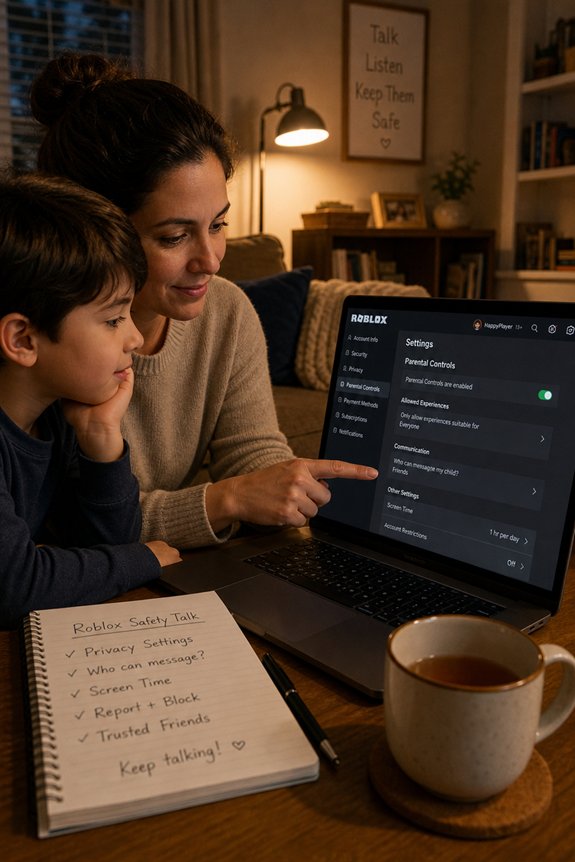
While you might think setting up parental controls is as complicated as deciphering a Dungeons & Dragons manual, it’s actually a breeze!
First off, set clear screen time limits. You don’t want your kid turning into a Roblox zombie!
Next, explore game selection. Use those age filters like a Jedi uses the Force.
And don’t forget to check in regularly. Ask them about their favorite games. It’s a perfect chance for bonding—like a Marvel team-up, but with fewer explosions!
Essential Resources for Parents on Roblox Parental Controls
If you’re plunging into the wild universe of Roblox, it’s essential to arm yourself with the right tools.
Start with Roblox’s official website—it’s like the Jedi Archives for parental controls! They’ve got guides galore to help you navigate online gaming and keep that child engagement in check.
Also, check out forums and YouTube tutorials. Seriously, nothing beats a good video walkthrough, right?
And hey, don’t be shy! Connect with other parents. Share tips, stories, and maybe even a laugh or two.
You’re not just a parent; you’re a superhero in this digital domain! So gear up and plunge in!
Discussing Online Safety With Your Kids
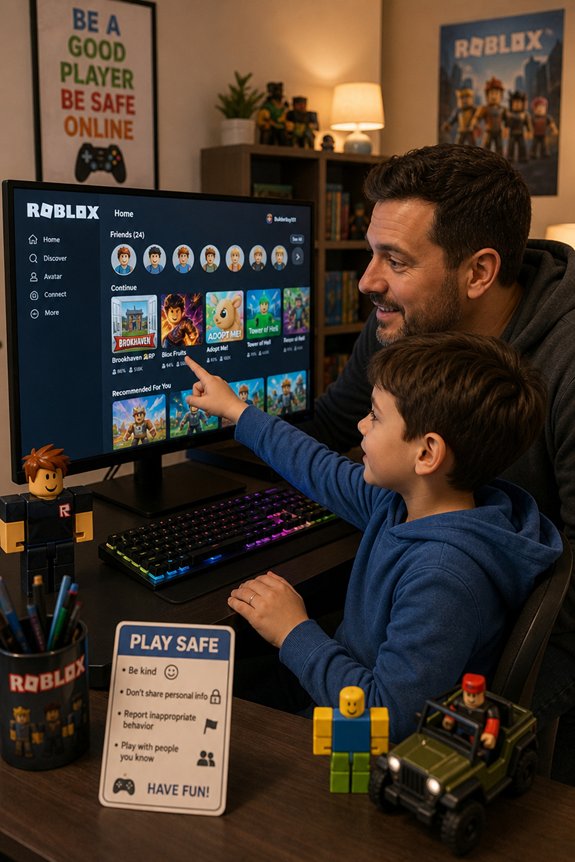
So, how do you even kick off a convo about online safety without sounding like a total buzzkill?
Start with something fun—like comparing internet trolls to those pesky Goombas from Mario.
Use solid communication strategies. Ask your kid what they think online etiquette means. You’d be surprised by their insights!
Share your own stories too—like that time you accidentally sent a meme to your boss.
And don’t forget to set the stage for them to come to you with anything.
Keep it light, keep it real. After all, you’re not just a parent; you’re their trusty sidekick in this digital adventure!
FAQs
Can Multiple Accounts Share the Same Parental Control Settings?
Multiple accounts can’t share the same parental control settings. You gotta manage each one separately.
Think of it like a Jedi training each Padawan individually—it’s all about that account management.
But hey, it’s not all doom and gloom! You can still customize security features for each account.
Are Parental Controls Available on All Devices?
Absolutely, parental controls are available on all devices! Whether you’re rolling with a console, PC, or mobile, you can set those parental restrictions.
But hey, device compatibility can be a bit like assembling an Avengers team—some work great together, others, not so much.
So, check your settings! Keep those kiddos safe in their pixelated adventures.
You wouldn’t let them roam the galaxy without a trusty droid, right? Game on, dad!
How Do I Reset Parental Control Settings?
Resetting parental control settings? Easy peasy! Just delve into your account settings.
You’ll see the parental permissions section. Click that bad boy and look for resetting options. Voila!
And hey, if you’re feeling like a Jedi mastering the Force, don’t forget to save your changes.
Otherwise, it’s like leaving the Millennium Falcon’s hyperdrive off while escaping stormtroopers—totally not cool!
Happy resetting, my friend!
Can I Block Specific Games or Users?
Absolutely, you can block specific games or users!
It’s like wielding your own lightsaber against unwanted Jedi—uh, I mean, players.
Just immerse yourself in the settings and set up those game restrictions.
You can totally keep the riffraff out while your kid enjoys their digital playground.
And hey, if they’re trying to befriend that annoying user, just hit block!
Think of it as your parental superpower.
Go on, release it!
Will Parental Controls Affect My Child’s Gameplay Experience?
Yes, parental controls can totally affect your kid’s gameplay experience. Think of it like a safety shield in a video game, keeping out the trolls and bad vibes.
But here’s the kicker: it might limit their game engagement a bit. They might miss out on some epic adventures—like slaying dragons or teaming up with pals!
Just balance safety concerns with fun. After all, you want them to be heroes, not just sidekicks, right?
Final Thoughts
So, there you have it, my fellow gamer parent! Roblox’s parental controls are like your trusty lightsaber—essential for maneuvering through the galaxy of online gaming. Use ’em to keep your young Padawan safe while they build epic worlds! And don’t forget to chat with them about online safety; think of it as leveling up their digital skills. Now go forth, customize those settings, and may the odds be ever in your favor as you tackle this gaming adventure together!